Plux is out: on your desktop, and now in Chrome
Back in August we said Plux was coming. The desktop app has been out for a while, and today we’re adding a second way to use it: Plux for Chrome.
Both do the same job. You come across something worth keeping while you work: a good reply, an error, a prompt you want to try next. Plux keeps it without making you leave the page. When you’re ready, it puts that text into the AI you use, so you don’t have to paste it.
Capture: double-tap Shift
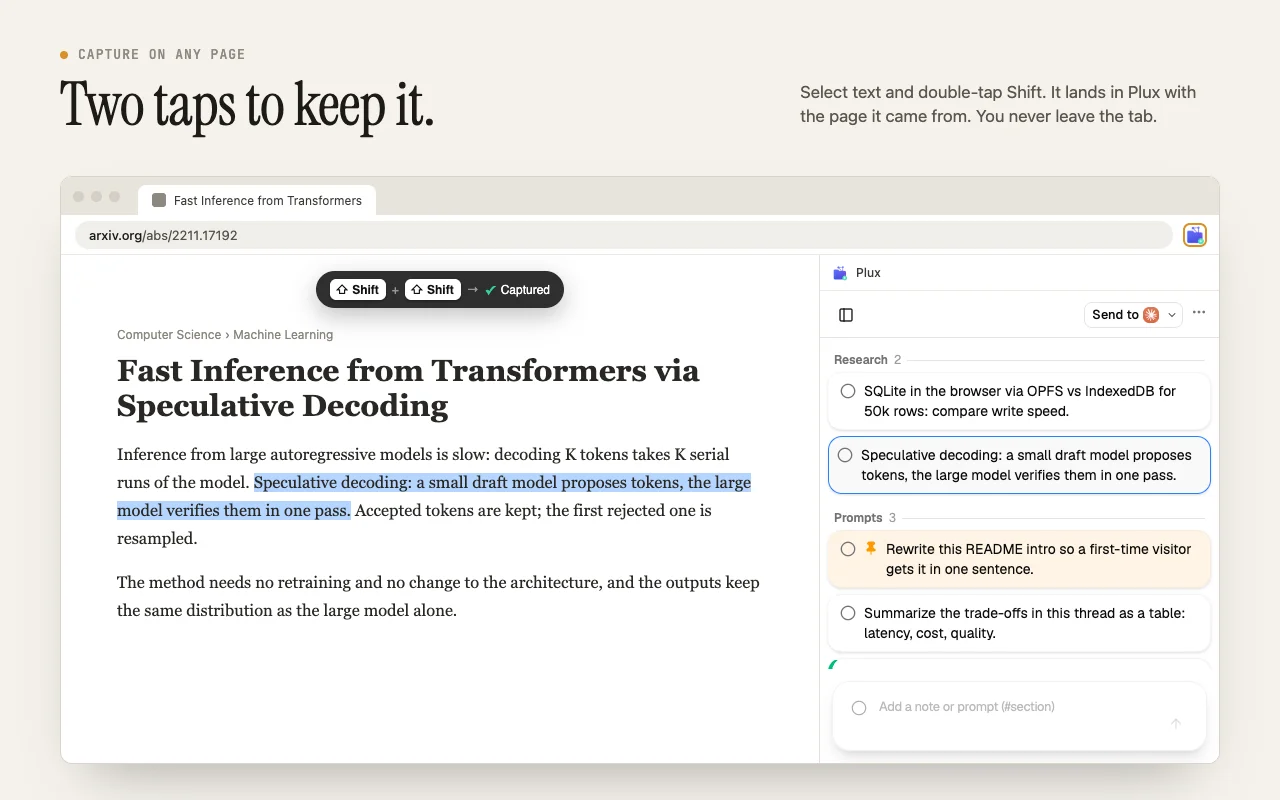
Select some text and tap Shift twice. A small “✓ Captured” confirms it, and the note lands in your list. That’s it. You don’t switch windows, pick a folder or type a title.
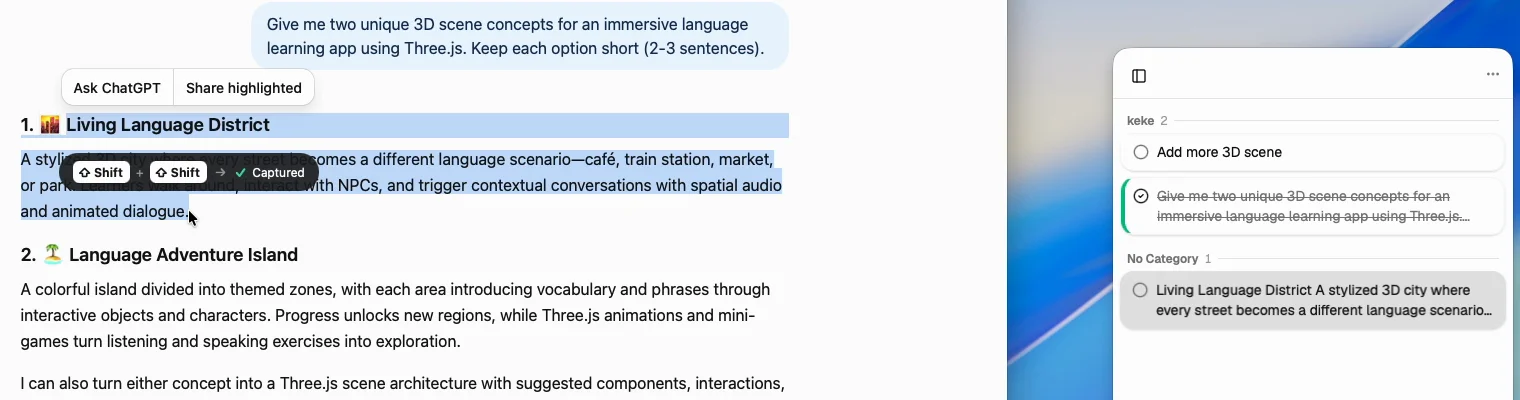
Your list works like a to-do list. Tick notes off once you’ve used them, pin the ones that matter, group them by project, and see where each one came from. Archive or trash what you’re done with.
Send: into the AI, but never sent for you
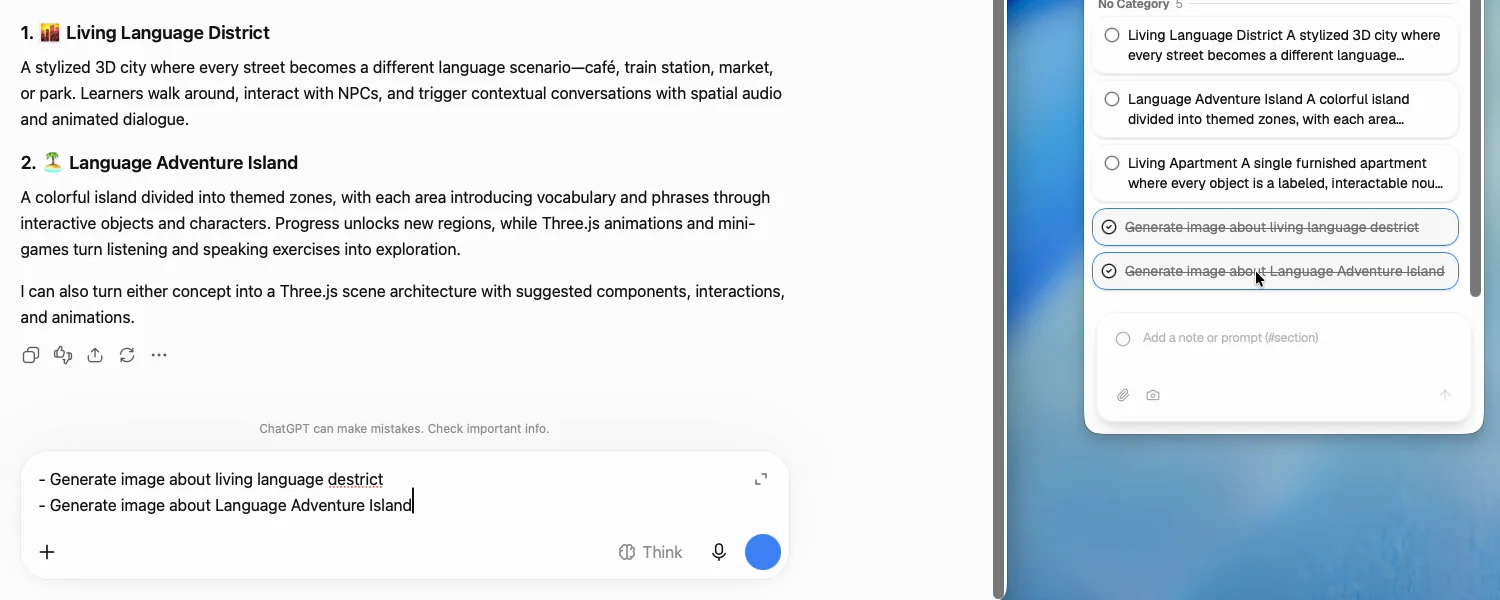
Pick one or more notes and send them to an AI. Plux opens or focuses it, waits for the prompt box, and puts the text in. It never presses Enter. You read it, edit it if you like, and send it yourself.
Desktop app or Chrome extension?
The desktop app (macOS and Windows, $39 once) works everywhere on your computer: in native apps such as Cursor, Codex and the ChatGPT and Claude desktop apps, as well as the browser. It can also capture a region of the screen with Cmd/Ctrl+Shift+I, and it restores your previous clipboard after sending. Notes live in a local file you own.
The Chrome extension is free and lives in Chrome’s side panel. Use it if your AI work happens in browser tabs, or if you can’t install apps on your computer, such as a work laptop.
- Double-tap Shift on any page, right-click and choose Add to Plux, or press Alt+Shift+P.
- Send to ChatGPT, Claude or Gemini. If none of them is open, Plux opens a tab for you. You can also send several notes as a markdown list.
- The side panel is the same UI as the desktop app: categories, pins, multi-select, merge, a markdown editor and keyboard shortcuts (⌘/ or Ctrl+/ lists them all).
- Screenshots and attachments aren’t in the extension yet.
Private by default
Neither version has an account or a server. The desktop app keeps everything in a local file. The extension keeps it in Chrome’s local storage, and removing the extension deletes it all.
The extension only asks for what it needs. Double-Shift capture on every site needs permission to run on the pages you visit, so the extension doesn’t ask for it at install. You turn it on from the panel when you want it, and you can turn it off again. Even with it on, Plux only listens for the Shift key and reads only the text you’ve selected. The details are in the Chrome extension privacy policy.
Get Plux
- Desktop: milisp.dev/plux
- Chrome: Plux for Chrome on the Chrome Web Store
Questions or bugs? Email help@milisp.dev.
This post was written by Claude, an AI model, from public sources and Plux's source code. Spot a mistake? Email help@milisp.dev.