01
Auto Sync
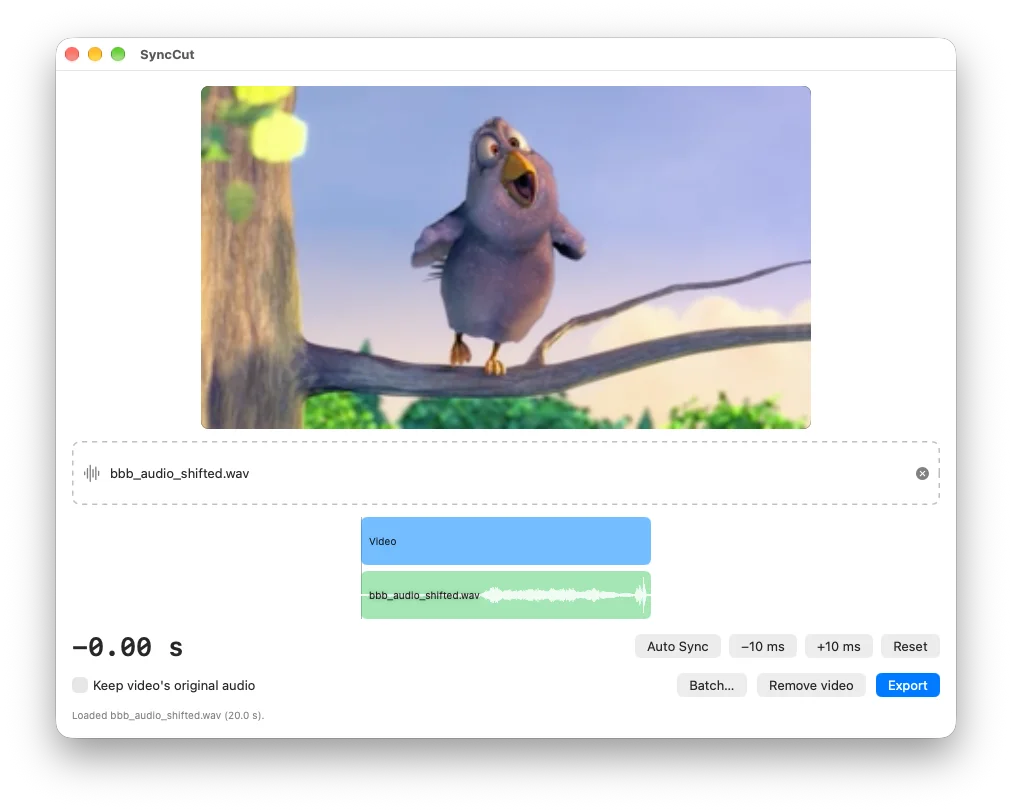
SyncCut finds the offset by matching your recording against the camera's own audio. It takes about a second, even for an hour-long recording. Want it exact? Drag the audio along the waveform timeline, or nudge it in 10 ms steps, and preview the result live.
No timecode needed. It matches by sound, so any camera that records some audio works, including phones, mirrorless cameras and action cams.
The recording can be another video, too: a phone or second camera that caught better sound. Drop it onto the audio box and SyncCut uses its sound, no audio export needed.
02
Batch Sync
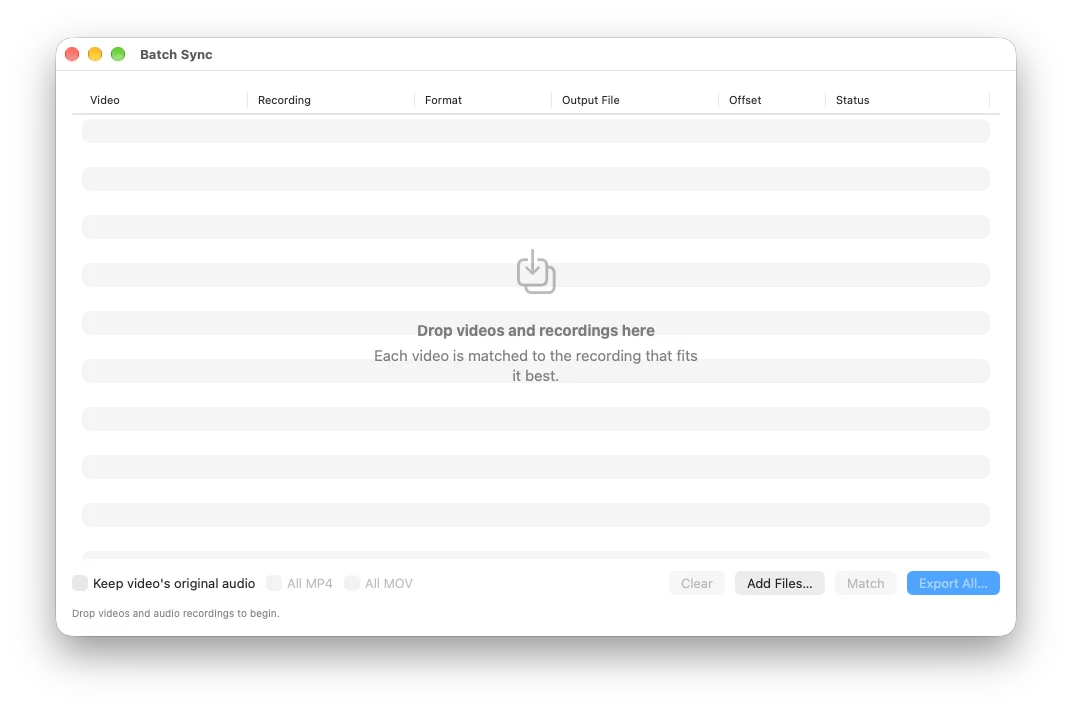
Drop a whole shoot at once: dozens of clips and a few long recordings. Every clip is compared against every recording, so you never have to work out which file goes with which clip, even when your recorder split a long take into several files. Weak matches are flagged so you can check them before exporting everything to a folder.
03
Wireless mic backups
Many wireless mics can record on the transmitter as a backup. When the signal drops out, the camera's copy of the sound has a gap, but the mic's own recording doesn't. Copy it off the mic, drop it in, and SyncCut puts the clean copy back on your video.
04
Silent video? Add the sound
A screen recording captured without sound, a drone shot, a timelapse: drop it in with any audio file, or with another video that has the sound, and get one video with the sound in it. There's no camera audio to match, so line it up by hand on the waveform. It starts at zero, so if the two began together, just export.
05
Lossless export
Export to MP4 or MOV. The video is passed through untouched when possible, with a high-quality re-encode only when needed. The result is a finished file exactly as long as your video, ready to post or to edit in any app. You can keep the camera's original audio underneath the external track. SyncCut warns you before exporting if the disk may not have room, and a failed or cancelled export never overwrites an existing file.
06
Private by design
Everything happens on your Mac. SyncCut never connects to the internet, and your footage never leaves your machine. Requires macOS 26 or later.

 Coming soon to the Mac App Store